2. Flash Images
2.1 Flash Full Firmware Image
❶ Open SocToolKit.exe on Windows.
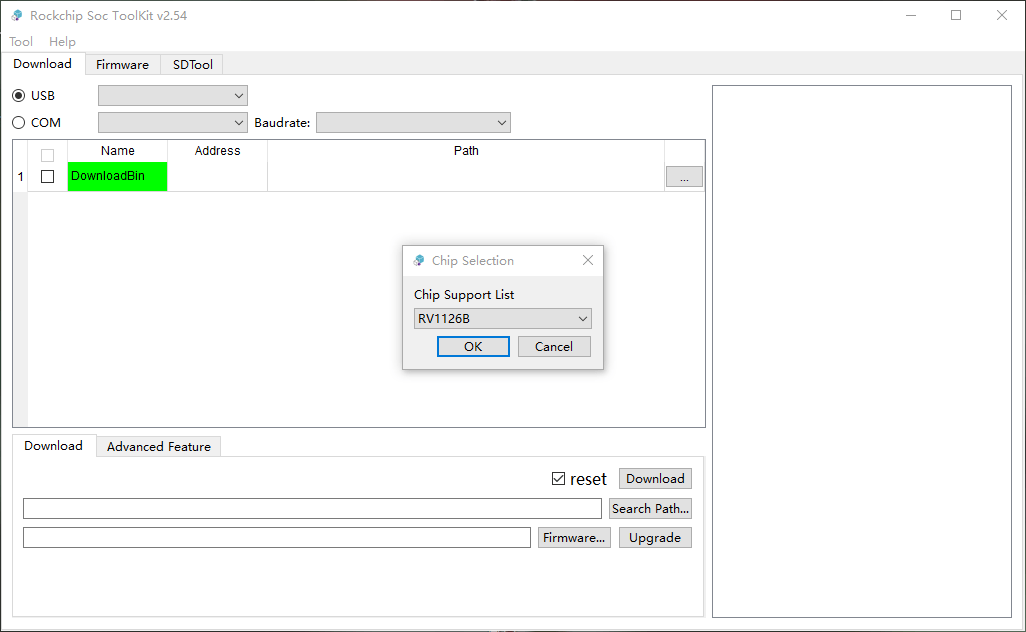
In the Chip Selection dialog box, keep the default chip option RV1126B, and then click OK.
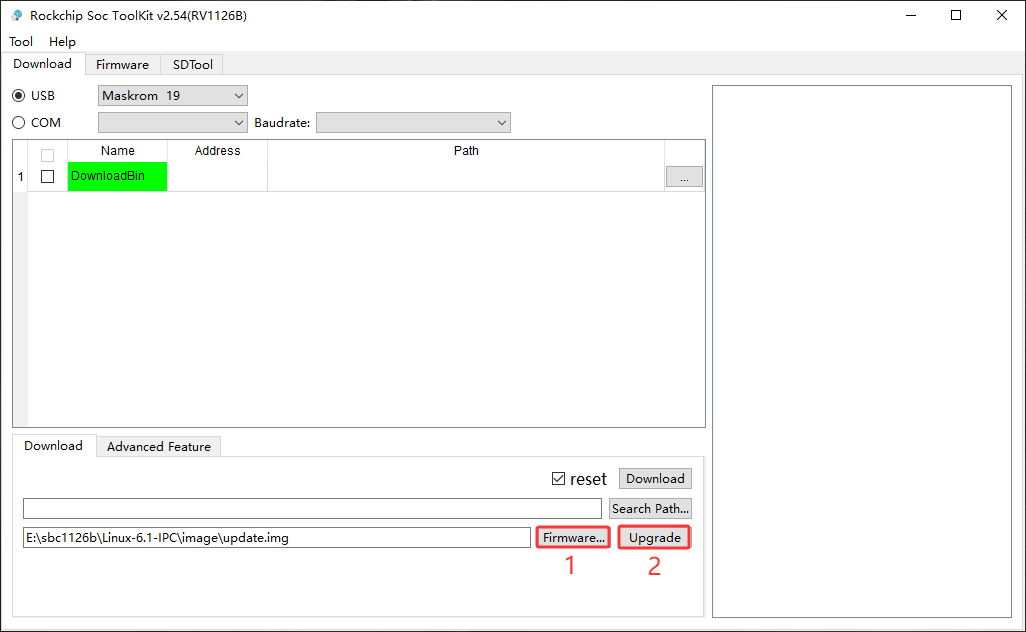
❸ Click Firmware, select update.img, click Upgrade to flash.
2.2 Flash Separate Partition Images
❷ Right-click the blank area in the image list and select Create items by env|parameter.
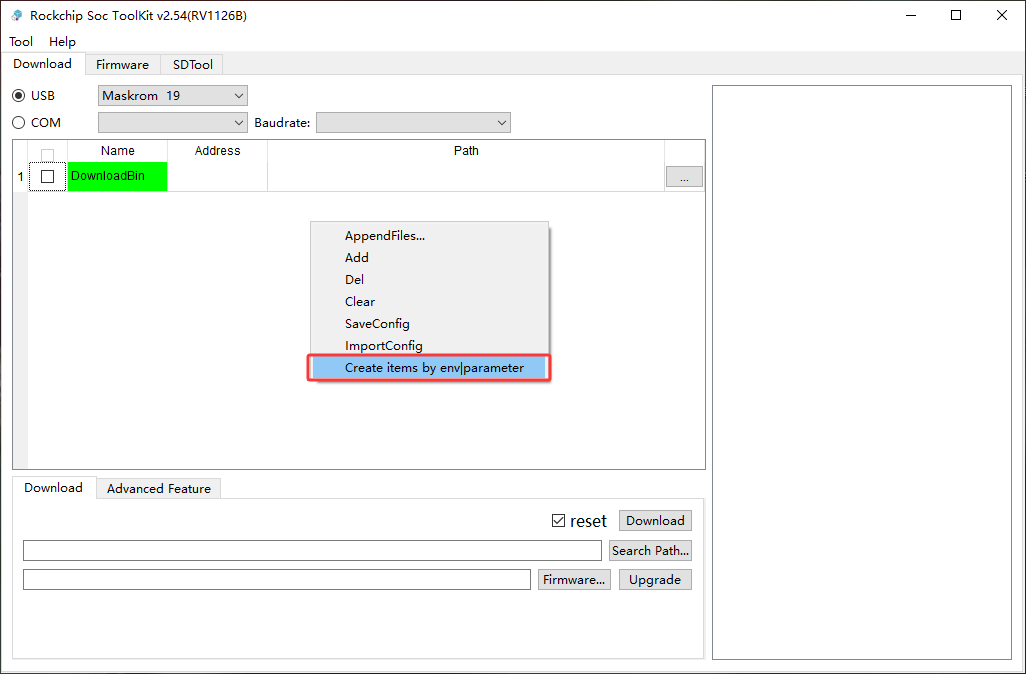
In the file selection window, select the env.img file from the separate image firmware directory. SocToolKit will automatically generate the flashing items and load the corresponding partition names, addresses, and image paths.
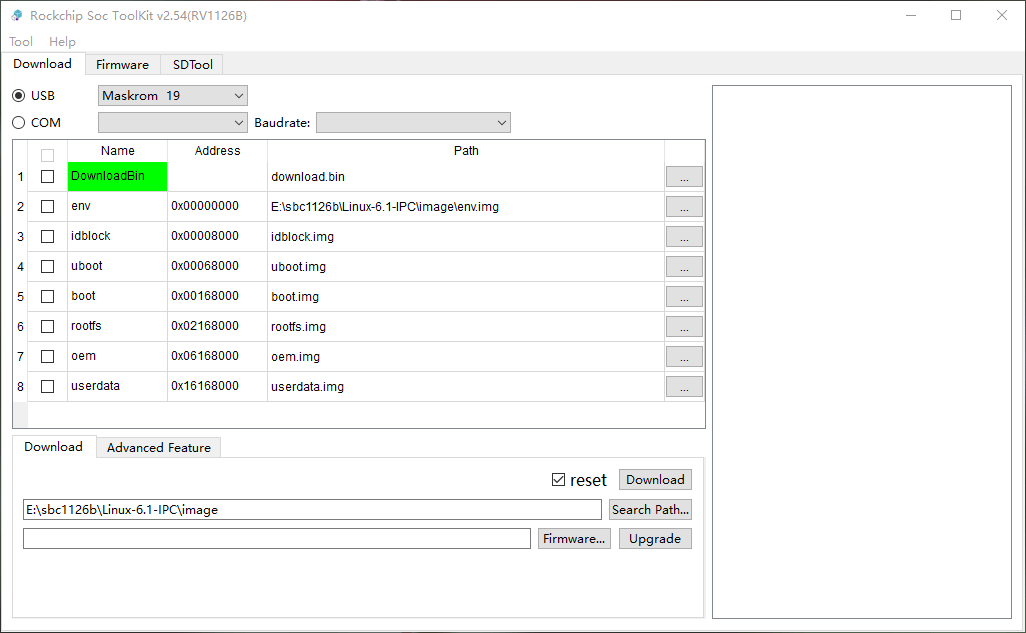
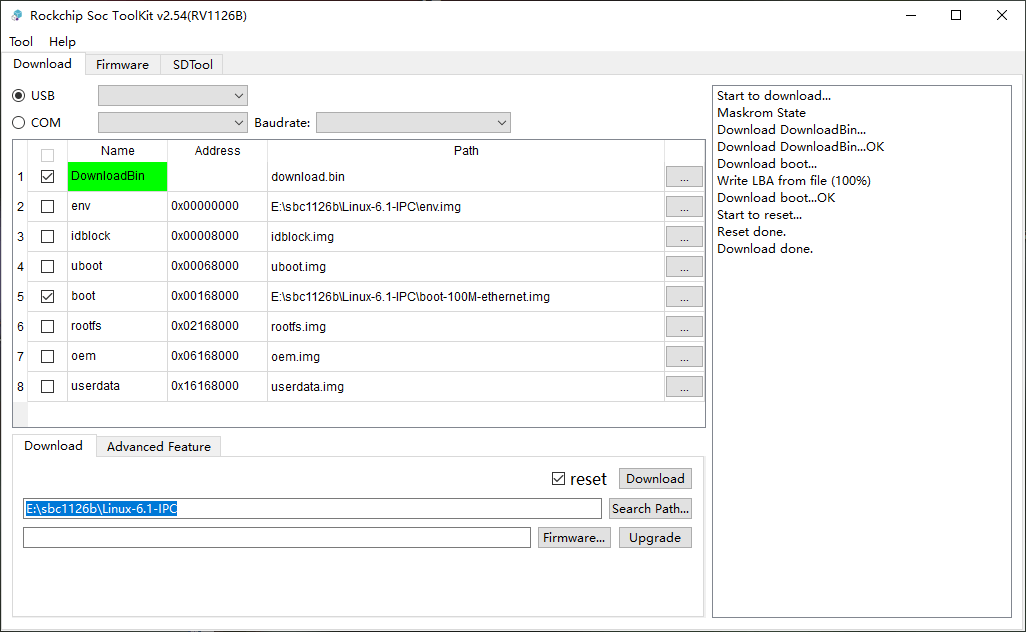
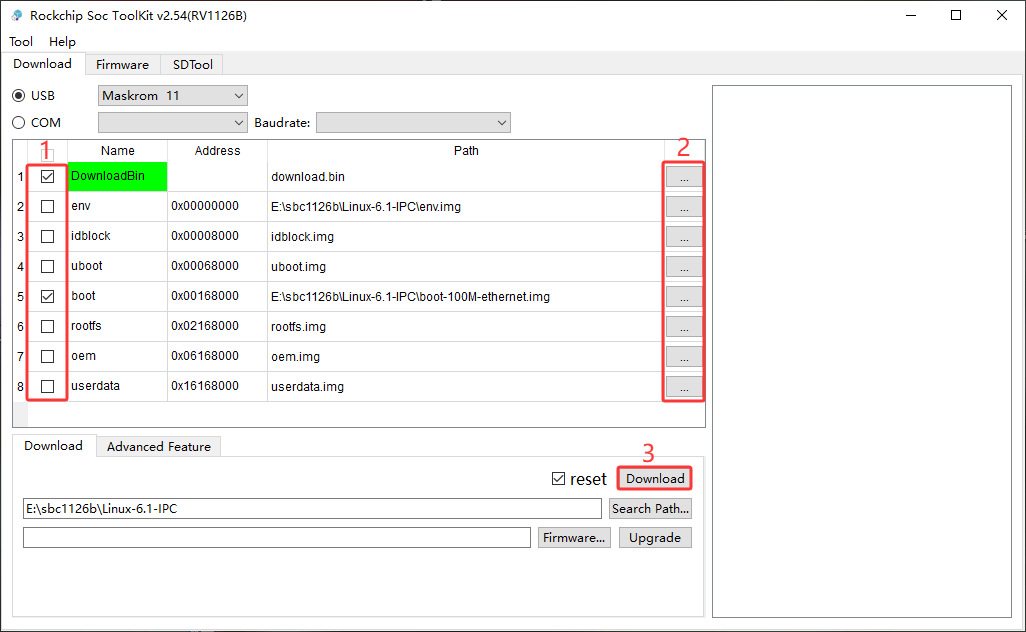
❸ Select the required image items in the list, click … to load the corresponding image files, and then click Download to start flashing.
Note
When flashing separate images, make sure that DownloadBin is selected. Otherwise, the flashing process may fail.
After flashing is complete, the board will automatically reboot.